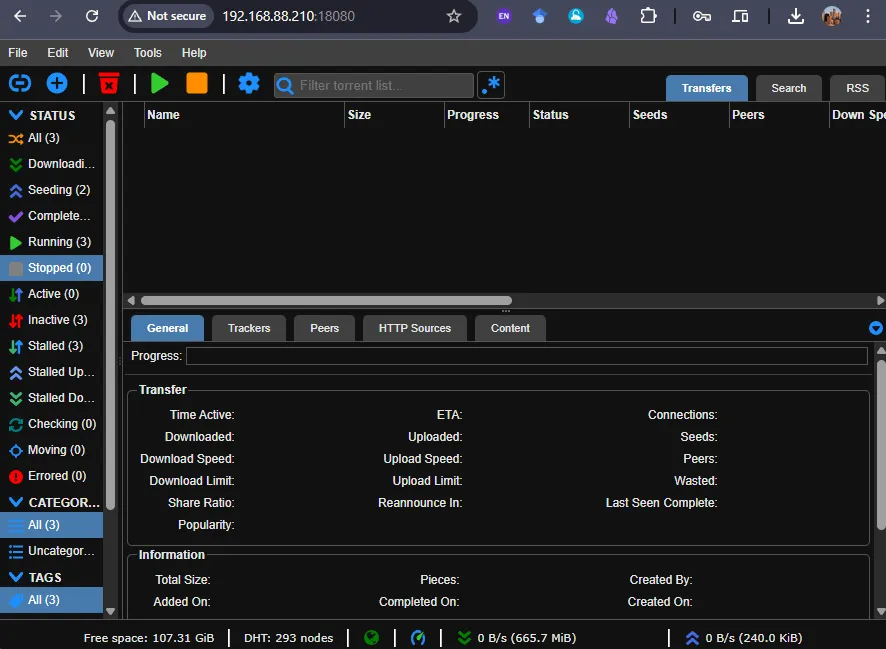
Run Qbittorrent on Milk-V Duo 256M
In this tutorial, you will learn how to run Qbittorrent, a popular open-source torrent client, on the Milk-V Duo 256M board running Debian.
Step 1: Install Debian
First, make sure you have installed Debian properly on the Milk-V Duo 256M board and SSH into it:
ssh debian@<ip-address>
Step 2: Install Qbittorrent and Dependencies
Next, update the package list and install Qbittorrent, Qbittorrent-nox (a headless version of Qbittorrent), and Xorg (an open-source implementation of the X Window System):
sudo apt update
sudo apt install qbittorrent qbittorrent-nox xorg
Step 3: Set Display Environment Variable
Set the display environment variable to use the first display:
export DISPLAY=:0
Step 4: SSH with X11 Forwarding
SSH into the Milk-V Duo board with X11 forwarding enabled to run graphical applications remotely:
# SSH into the board with X11 forwarding enabled
ssh -X debian@192.168.88.210
Step 5: Run Qbittorrent
Run Qbittorrent to ensure it is installed correctly:
qbittorrent
# If the GUI fails to start in Windows Powershell, try use WSL instead.
Step 6: Enable Web UI
Go to the settings and enable the Web UI. Set the IP address to 0.0.0.0 and use the default port 8080. You can change the port in the settings if needed.
Step 7: Access Qbittorrent Web UI
After configuring the Web UI, you can access Qbittorrent from your web browser using the following URL:
http://<your-board-ip>:8080
Step 8: Start and Enable Qbittorrent-nox Service
Start the Qbittorrent-nox service and enable it to start on boot:
sudo systemctl start qbittorrent-nox@debian
sudo systemctl enable qbittorrent-nox@debian